17 lessons, from the home row to the number row
Free typing lessons
Seventeen short lessons that teach you to type without looking, a few keys at a time: the home row first, then each finger’s reaches, then punctuation and capitals, then the number row. They run right here in your browser, free, with no signup.
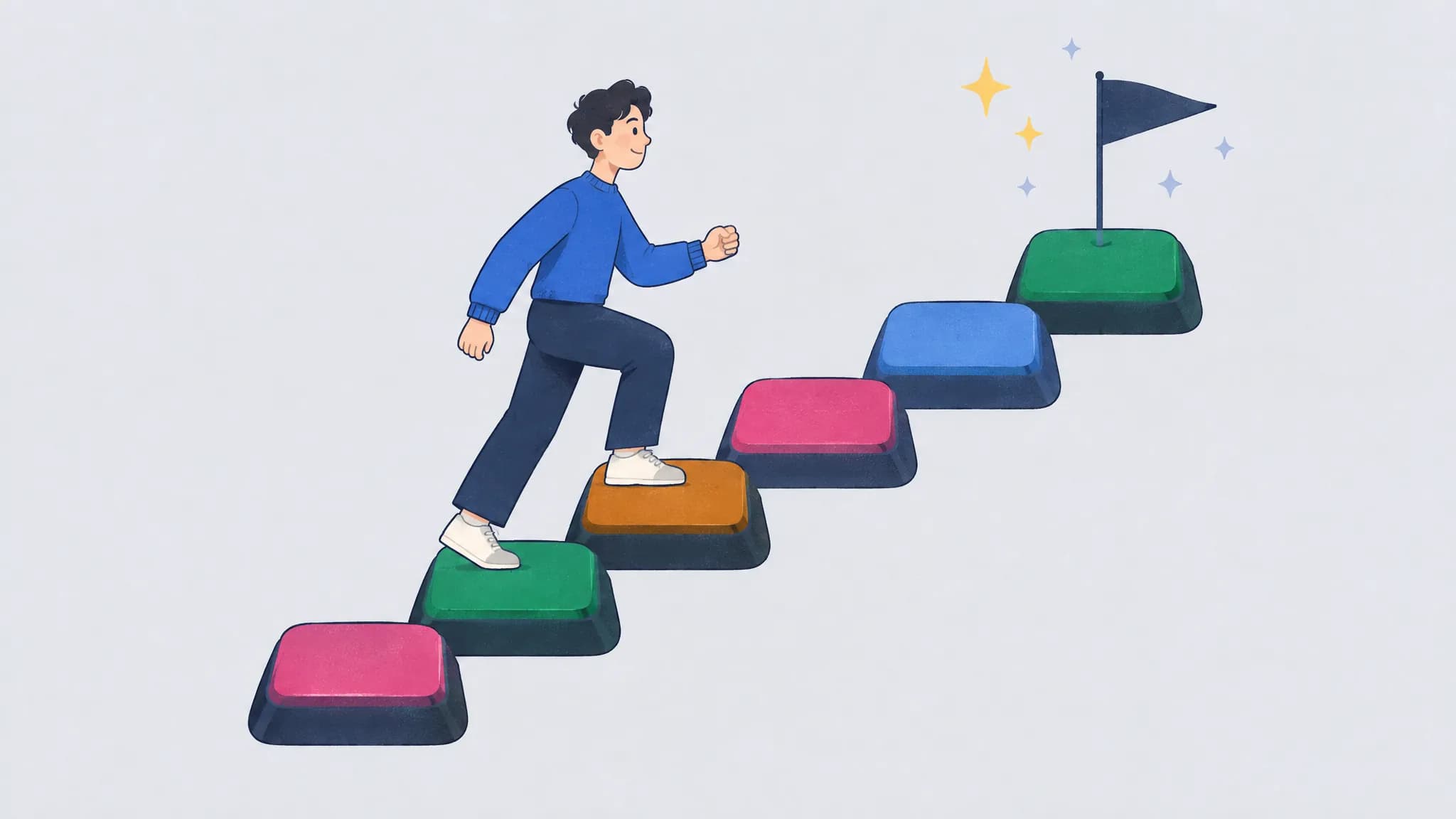
The 17 lessons
Each one adds a few keys to those before it. Open a lesson to see its fingers, words and common mistakes, or start it right away.
Lesson 1
The home row
ASDFJKLSeven keys, right where your fingers rest.
Lesson 2
G and H
GHThe index fingers’ reach to the side.
Lesson 3
E and I
EIYour middle fingers, up from D and K.
Lesson 4
R and U
RUYour index fingers, up from F and J.
Lesson 5
T and Y
TYYour index fingers, up and in.
Lesson 6
O and W
OWYour ring fingers, up from L and S.
Lesson 7
C, N and M
CNMThe first keys on the bottom row.
Lesson 8
B and P
BPA long reach down, and the pinky up.
Lesson 9
V and X
VXTwo reaches on the left hand’s bottom row.
Lesson 10
Q and Z
QZThe last two letters, both for the left pinky.
Lesson 11
Periods and commas
.,Periods and commas, on the right hand.
Lesson 12
Capitals and question marks
?ShiftShift, with the other hand’s pinky.
Start lesson 12About this lesson: Capitals and question marks
Lesson 13
4 and 7
47The number row, index fingers first.
Lesson 14
3 and 8
38Middle fingers, two rows up.
Lesson 15
2 and 9
29Ring fingers, two rows up.
Lesson 16
1 and 0
10The pinkies reach the number row.
Lesson 17
5 and 6
56The last two digits, in the middle.
How the lessons work
- A few keys at a time. Each lesson adds a few keys to the ones before it, and its text uses only keys you have learned: real words from a bank of 5,547, and in the number lessons, numbers made of the digits learned so far. Lesson 1 adds short drills, since the home row alone makes few words.
- Short rounds. A lesson round is at most 30 words.
- Passing is about accuracy, not speed. A lesson passes when you type a round at 95% accuracy or better with every new key typed right at least once. The next round then moves on to the next lesson.
- A keyboard guide under the text. On a computer keyboard, it can show the next key and the finger that types it, with hands resting on the home row, so your eyes can stay on the screen. Options sets how much it shows.
- Start anywhere. Pick any lesson below or in the practice options, go back to one you have passed, or skip ahead. Passing a lesson counts the lessons before it as passed too.
- Stars for beginners. On the Learning to type path, the text is larger and each round shows stars instead of a speed.
- Your progress is kept. Lessons passed are saved in your browser, and in your account if you sign in with Google.
Why this order
The lessons start on the home row, where the bumps on F and J let your hands find their place without looking. From there, movement grows one step at a time: no reach at all, then a reach to the side for G and H, then reaches up and down.
Keys come in pairs where they can, typed by the same finger making the same move on each hand: E and I, R and U, T and Y, O and W. So each lesson trains one motion.
Common letters come before rare ones, so real words arrive quickly: the word bank has 13 words for lesson 1, 163 after lesson 3, 1,238 after lesson 6, and 3,500 of its 5,547 after lesson 7. Punctuation comes after the letters, and capitals after that, because Shift is a second skill on top of finding the keys.
The number row comes last, two digits at a time, one finger on each hand: 4 and 7 for the index fingers, then the middle fingers, the ring fingers and the pinkies, and the index fingers’ stretch to 5 and 6 at the end. Each digit sits two rows above its finger’s home key.
Which finger types which key
Every lesson follows this chart, the standard touch typing one, and so does the keyboard guide on the practice page. Our guide to touch typing finger placement explains it key by key.
- Pinky
- Ring finger
- Middle finger
- Index finger
- Thumbs (space bar)
- Outlined: home keys
| Finger | Left hand | Right hand |
|---|---|---|
| Pinky | ` 1 Tab Q Caps Lock A (home key) Shift Z | 0 - = Backspace P [ ] \ ; (home key) ' Enter / Shift |
| Ring finger | 2 W S (home key) X | 9 O L (home key) . |
| Middle finger | 3 E D (home key) C | 8 I K (home key) , |
| Index finger | 4 5 R T F (home key) G V B | 6 7 Y U H J (home key) N M |
| Thumbs | space bar with either thumb | |
Frequently asked questions
Are the typing lessons free?
Yes. All seventeen lessons, practice and the typing test are free, with no account needed. Signing in with Google, also free, keeps your progress on every device.
How long does a lesson take?
A lesson round is at most 30 words: about 3 minutes at 10 words per minute, 1.5 minutes at 20. You can try a lesson as many times as you need, and practice goes on to the next one when you pass.
Can I skip lessons?
Yes. Start any lesson from the list on this page or from the practice options. Passing a lesson counts the lessons before it as passed too, so if you already know the home row you can start further on, and go back to any lesson later.
What does it take to pass a lesson?
A round at 95% accuracy or better in which every new key was typed right at least once. Speed doesn’t count. On the Learning to type path, rounds show stars instead of speed: two stars or more means the accuracy is there.
Are the lessons good for kids?
Yes, for children who read comfortably. Choose the Learning to type path: the text is larger, the keyboard guide shows every finger, and stars stand in for speed. Our guide to typing for kids covers when to start and how long to practice.
Do I need an account?
No. Your progress is saved in your browser. Sign in with Google, free, to keep it in your account too, so it follows you to other devices.
Touch typing guides
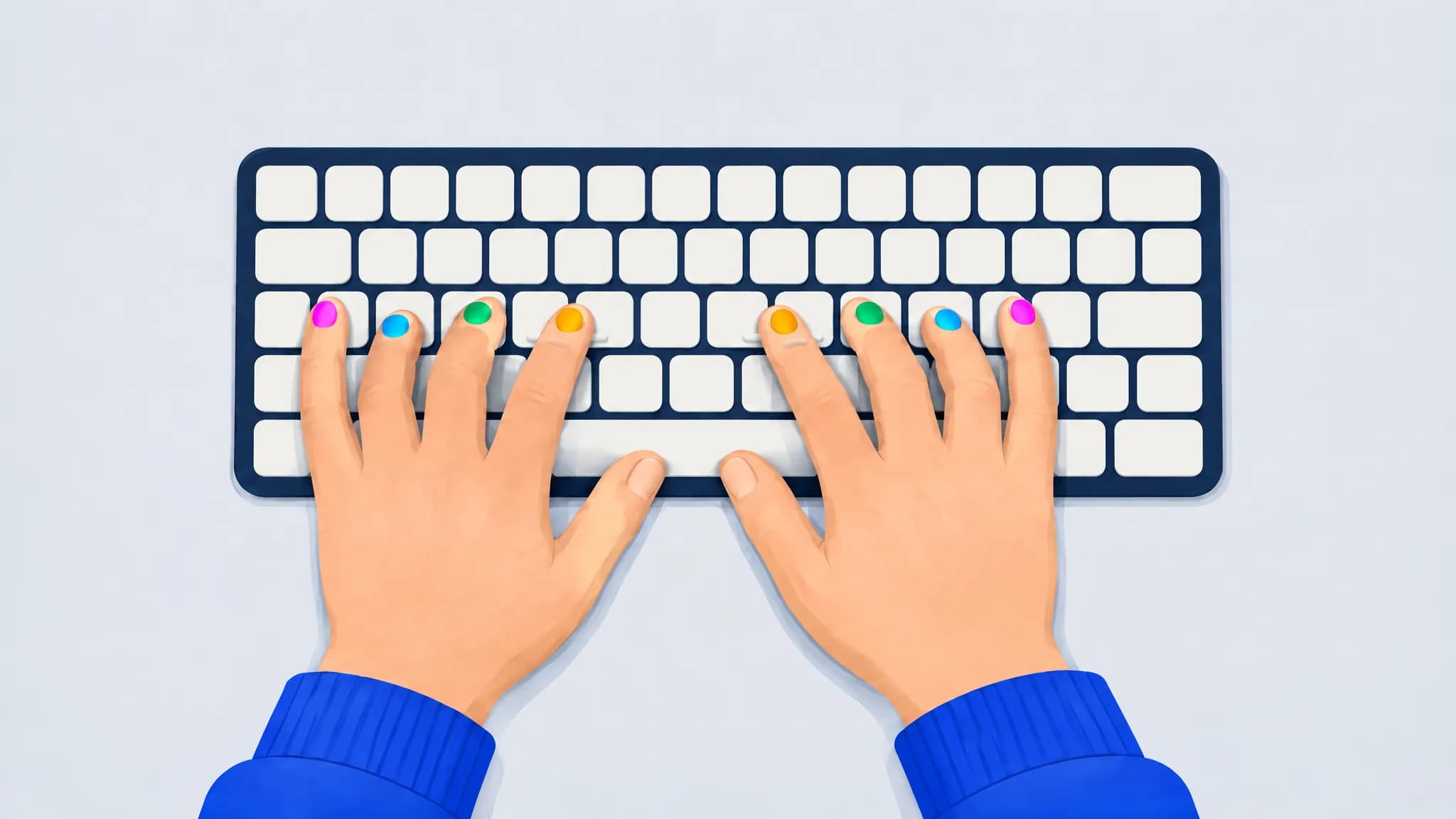
Touch typing finger placement: home row keys and a finger chart
Rest your left fingers on A S D F and your right fingers on J K L ;, thumbs on the space bar. Each finger covers the keys above and below its home key.
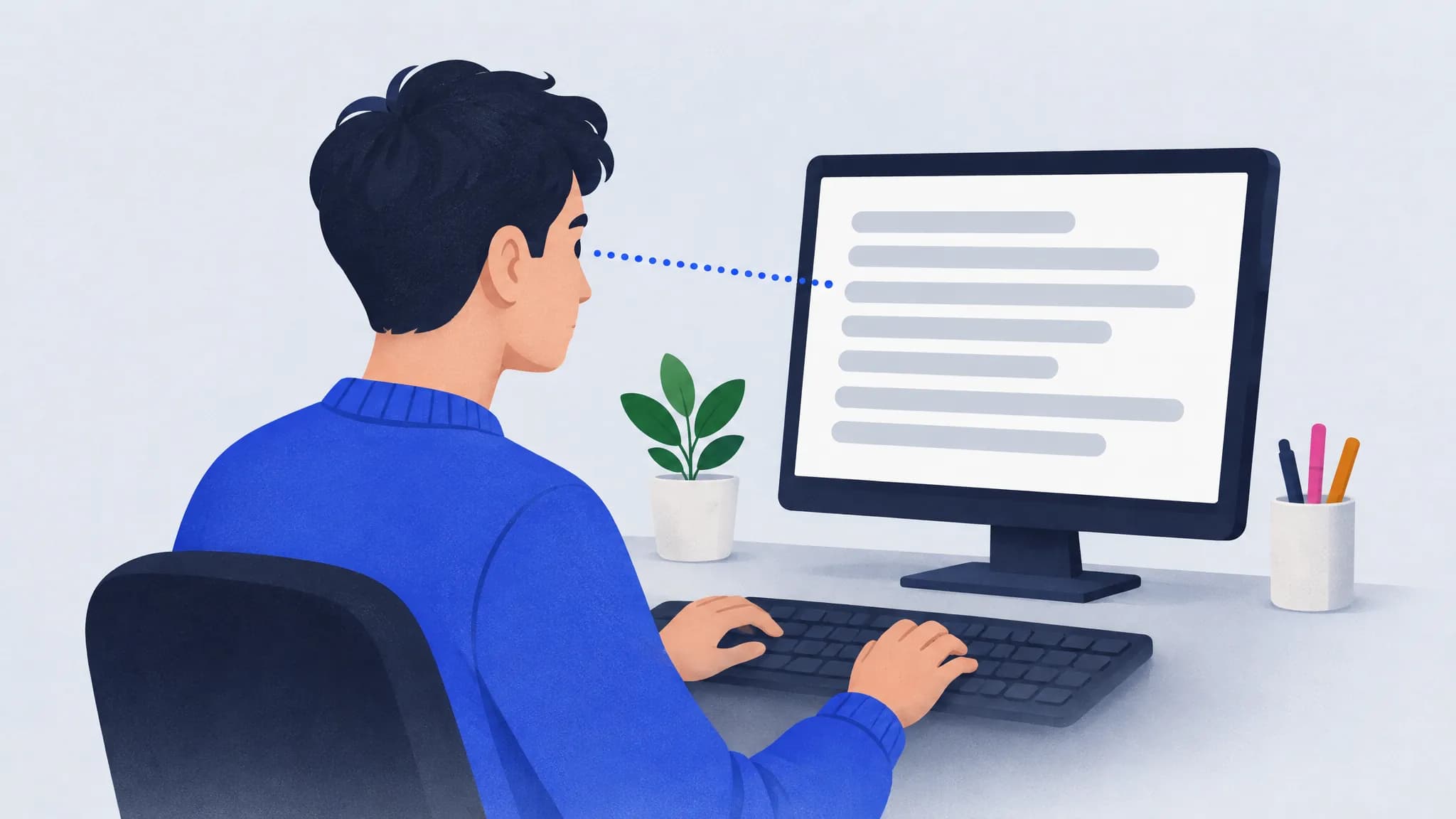
How to stop looking at the keyboard when you type
Anchor on the F and J bumps, keep your eyes on the text even when it slows you down, and fade any on-screen keyboard as you improve. Expect a short dip.
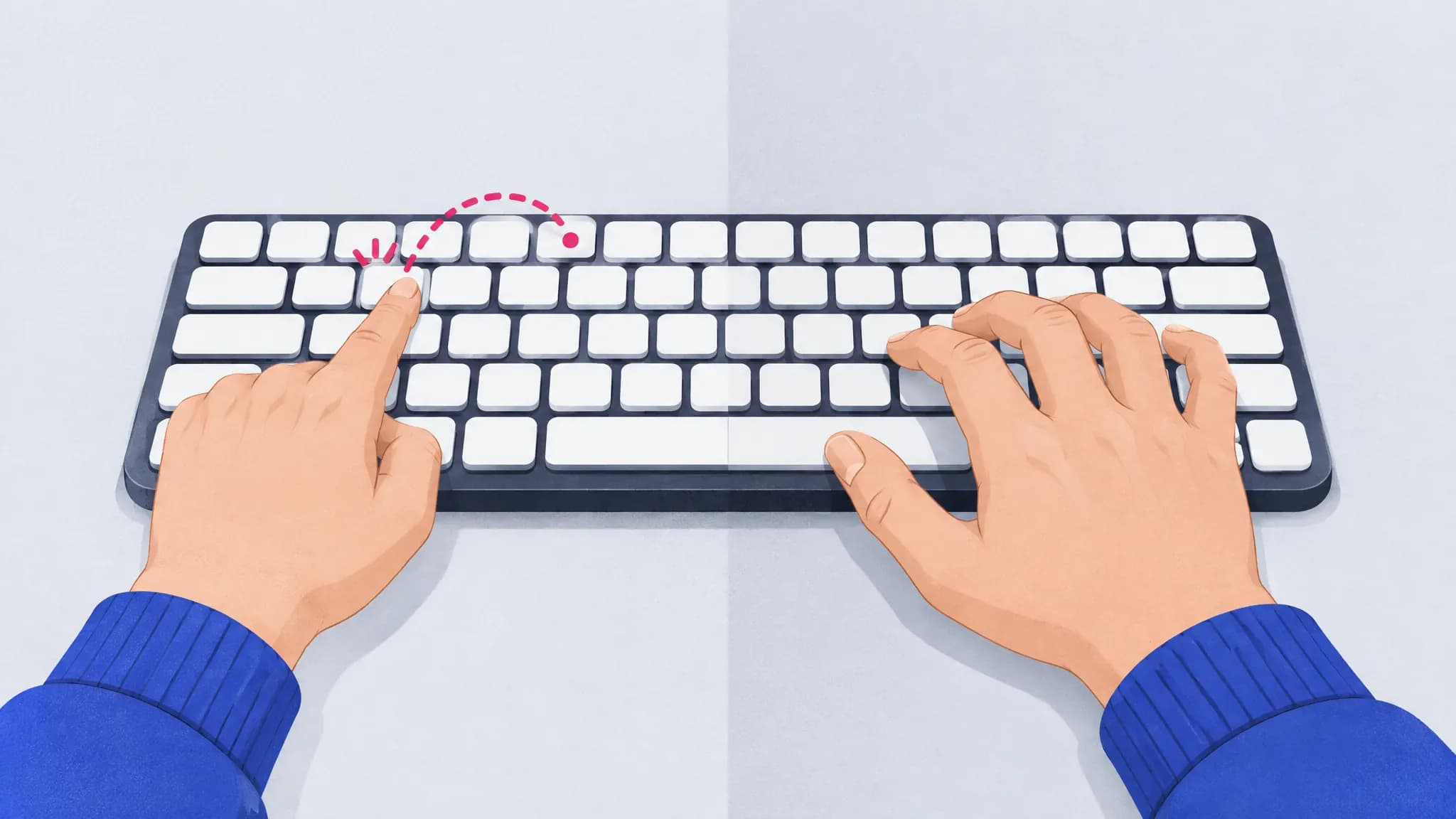
Two-finger typing vs touch typing: is it worth switching?
Self-taught typists using about six fingers can match touch typists for speed, but they look at their hands twice as long. Here’s when switching pays off.