For teachers
How to run a class typing race, step by step
Sign in with Google, start a class race and put it on the big screen. Students go to typingpractice.ai/race, type the six-letter code and a first name, and you start the race when everyone is in. Set the accuracy that counts, race a text of your own if you like, then download the results and print a certificate for every student. Students need no accounts, and there are no ads.
On this page
A class race is a private typing race that you run from the front of the room. Up to 60 students type the same text at the same time, each on their own computer, and the big screen shows who is ahead. Only you need an account: students join with a code and a first name.
What you need: a computer for you, ideally connected to a projector or a big screen; a computer with a keyboard for each student; and about two minutes to set up. If your school filters websites, first check that typingpractice.ai/race opens on a student computer. The setup page for schools lists what your IT team needs to allow.
1. Start a class race
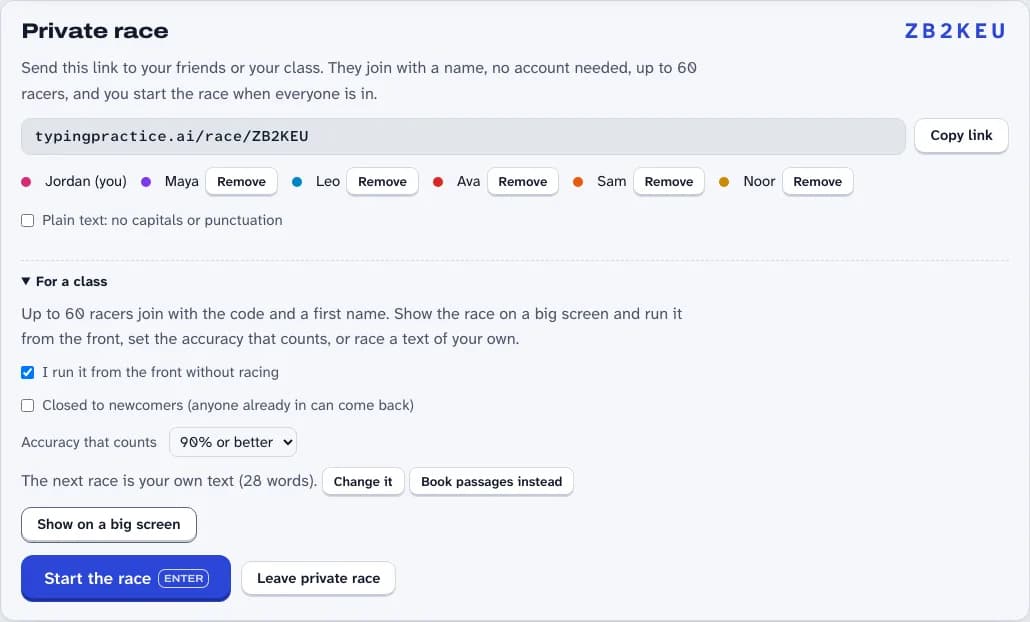
Sign in with Google, then press Start a class race on the teachers’ page. (From the race page, Race your friends starts the same private race.) You get a race of your own with a six-letter code, a link to share, and a list of everyone who joins.
Open For a class to set it up:
- I run it from the front without racing keeps you out of the race, so you can watch.
- Accuracy that counts sets the floor a result needs: any, or 80% to 98%. We suggest 90% for younger students and 95% for older ones.
- Use your own text lets you race a passage of 40 to 1,200 characters, such as a paragraph from the book your class is reading or one of our winter passages. Otherwise each race is a passage from a classic book.
- Plain text: no capitals or punctuation makes the book passages easier for beginners.
2. Put it on the big screen
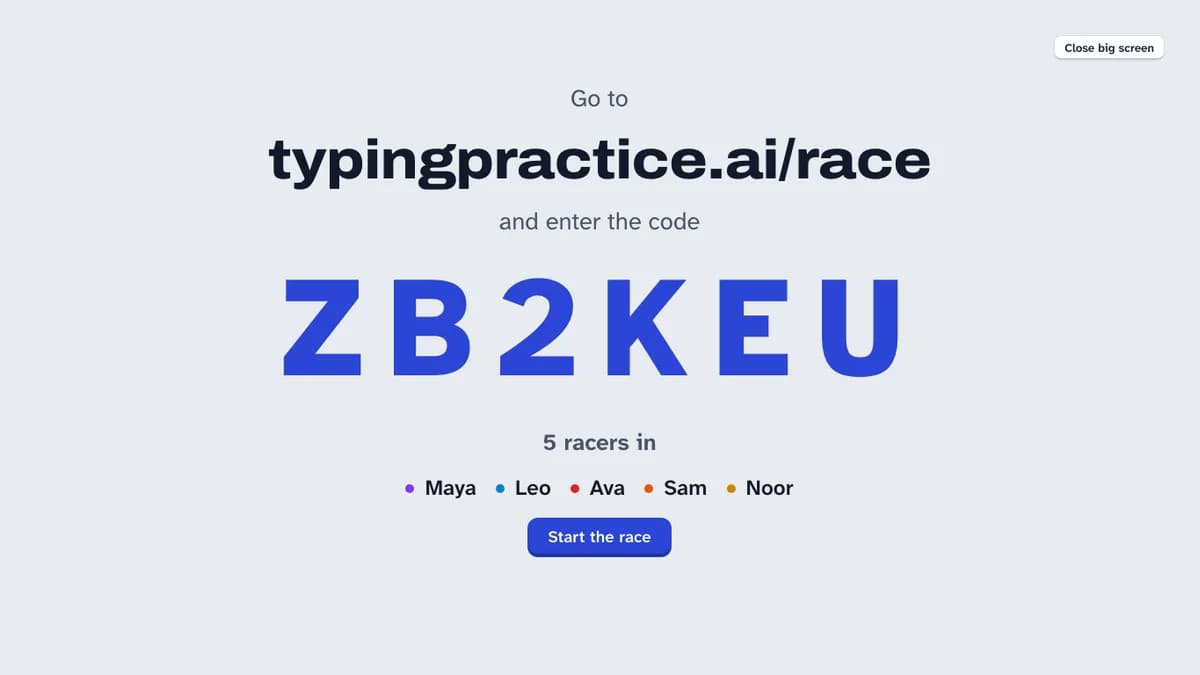
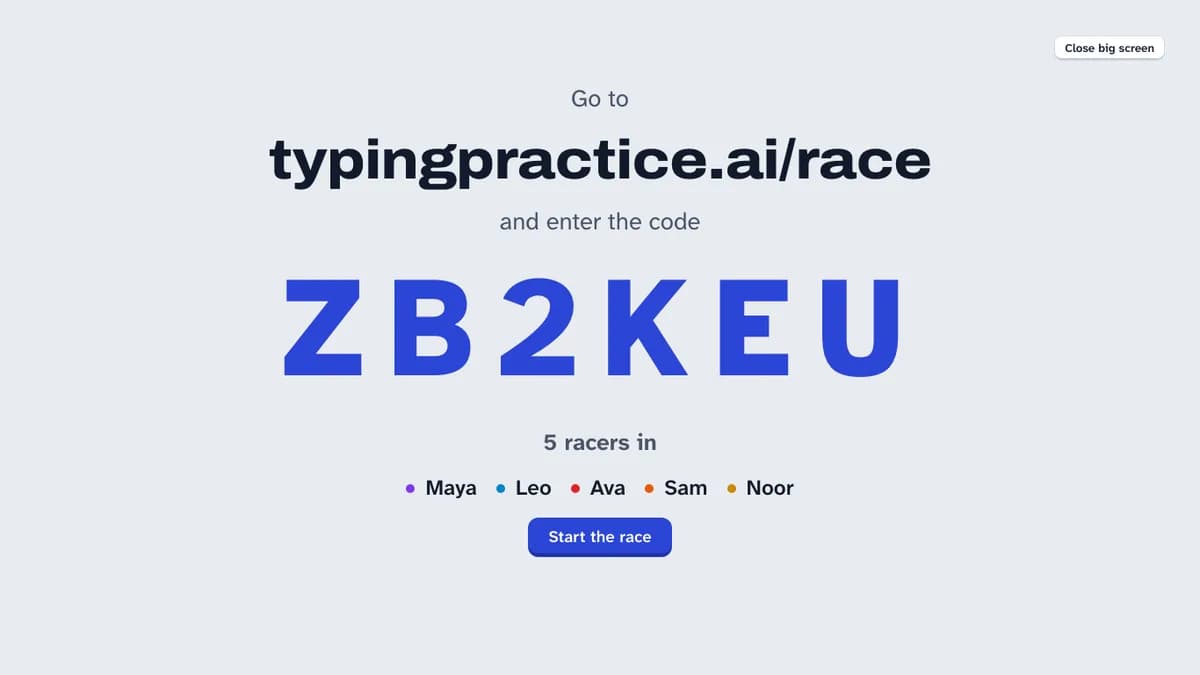
Press Show on a big screen. The screen shows the address and the code in large letters, then the name of each student as they join.
3. Students join with the code
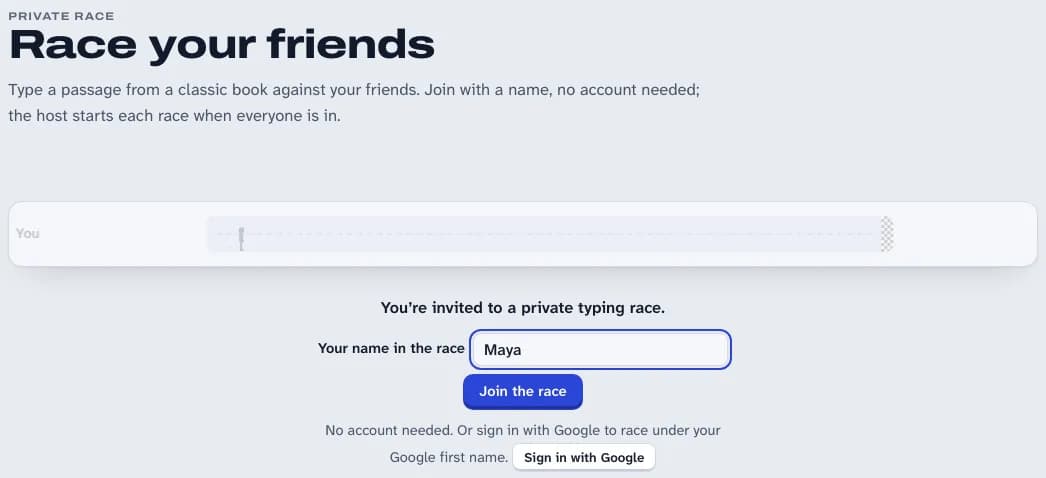
Each student goes to typingpractice.ai/race, types the code into Have a code? and presses Join. Then they type their first name, or a nickname, and press Join the race. No account and no email address are needed.
When everyone is in, tick Closed to newcomers so nobody else can join (anyone already in can come back if their page reloads). If someone joins who shouldn’t, Remove takes them out of the race for good.
4. Race
Press Start the race on the big screen. After a short countdown, everyone types the same text. A wrong key counts against accuracy, and the student has to type the right key before going on, so every finished text is correct. Pasting doesn’t work: every key has to be typed.
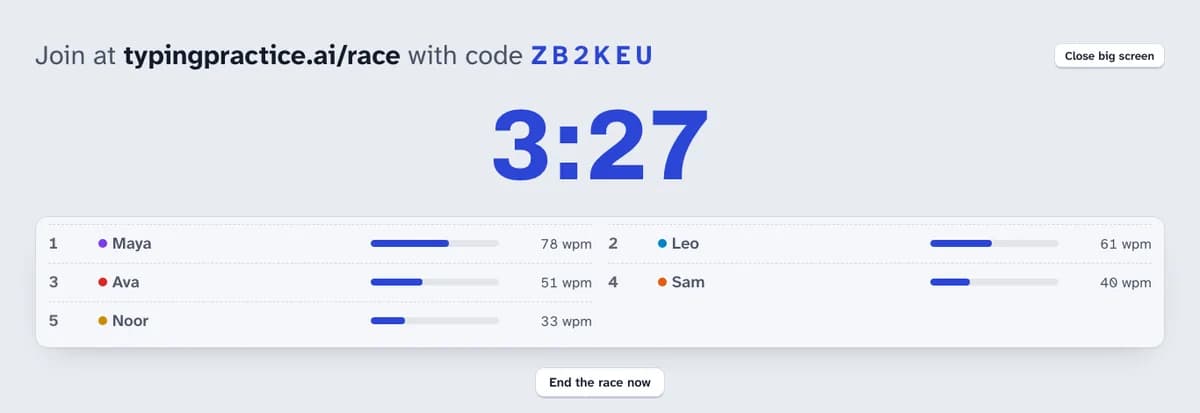
The big screen shows a clock and each student’s speed as they go. End the race now stops it early if one student is stuck.
5. Celebrate, then race again
When the race ends, the big screen shows the first three places with their speeds and accuracy, then everyone’s results. Race again starts the next race with the same students.
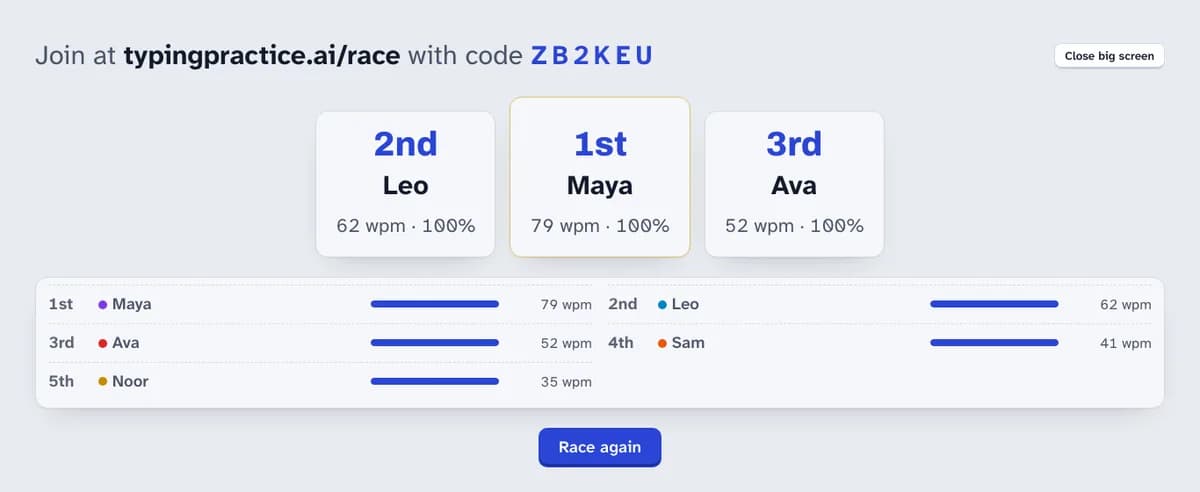
Only students who reach the accuracy floor get a place. The others still see their speed and accuracy, so they know what to work on.
6. Keep the results
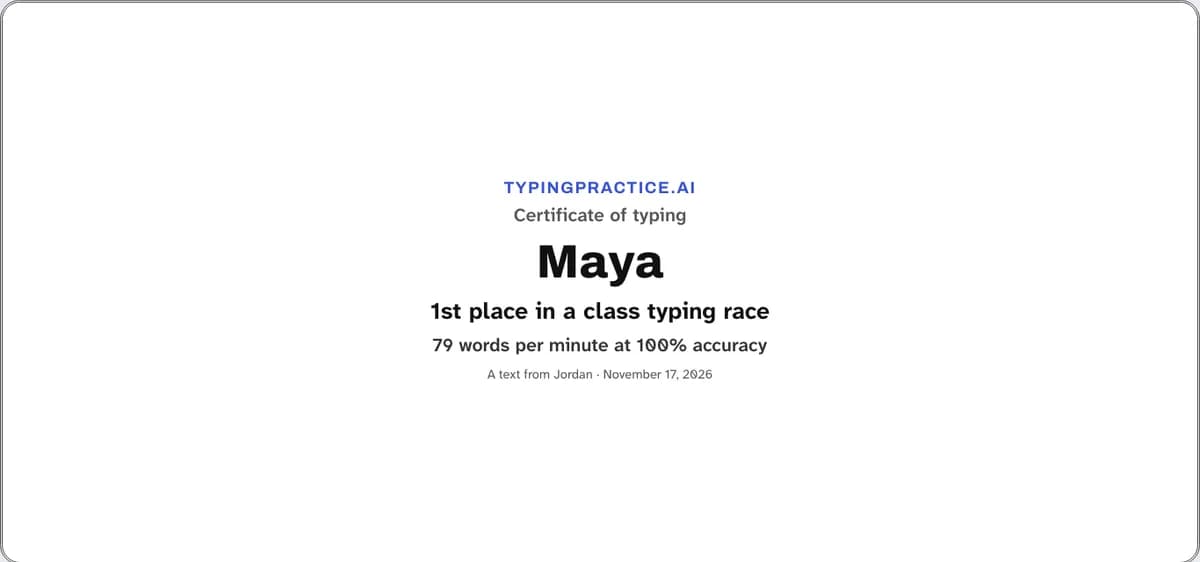
Close the big screen to see the results on your own screen. Download results (CSV) saves a spreadsheet with each student’s place, name, speed in words per minute, accuracy, time and whether they finished. Print certificates prints a page for each student who finished, with their name, speed, accuracy and the date, and their place if they came in the top three.
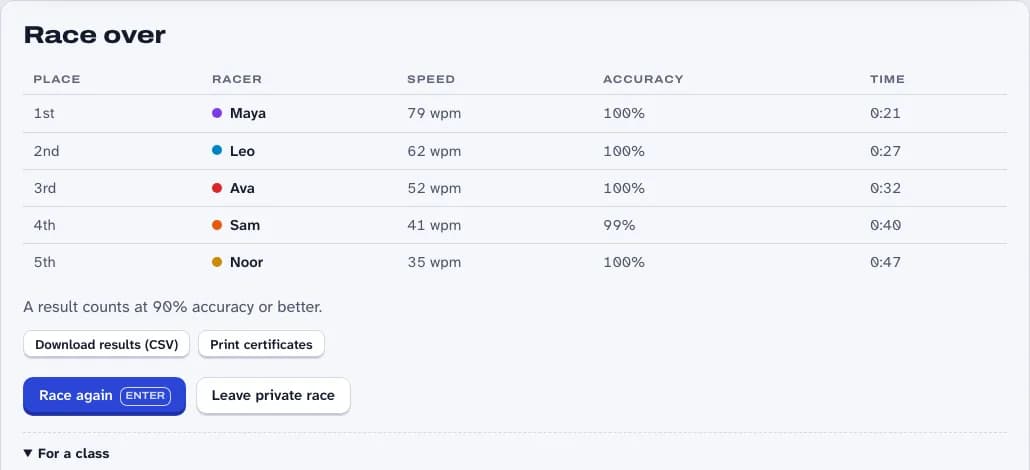
The spreadsheet and the certificates are made in your browser. The race server keeps the names students type only while the race runs, and forgets them when the last person leaves.
Tips from the front of the room
- Start with a practice round. The first race is for finding the keyboard and the code; the second is the real one.
- Set the accuracy before the speed. A floor of 90% or 95% turns the race into practice in careful typing, not in mashing keys.
- Celebrate more than first place. Personal bests, the steadiest typist and the most improved are worth a cheer too. Our printable certificate has room for any award.
- Keep the races short. A passage of a few lines takes a minute or two, so several races fit in a lesson.
- Race with them now and then. Untick I run it from the front without racing and join in: students love to beat their teacher.
Frequently asked questions
Do students need an account?
No. Students join with the code and a first name or nickname. Only the teacher who starts the race signs in, with Google. Students can also sign in if they like, to race under their Google first name.
How many students can join a class race?
Up to 60, enough for a class or two at once. For a whole grade, run a race per class and a final for the fastest; see how to run a school typing contest.
Can we race our own text?
Yes. Under For a class, choose Use your own text and paste 40 to 1,200 characters, such as a passage from your class book. Plain keyboard characters work best: curly quotes and dashes are turned into plain ones.
Are there ads or anything students could click away to?
No. TypingPractice.ai has no ads and no analytics company, and there is no chat in a race.
What does a student need?
A computer with a keyboard and a web browser. Typing races need a keyboard, so phones and tablets without one aren’t a good fit.